Complete User Guide
Scribet Guide
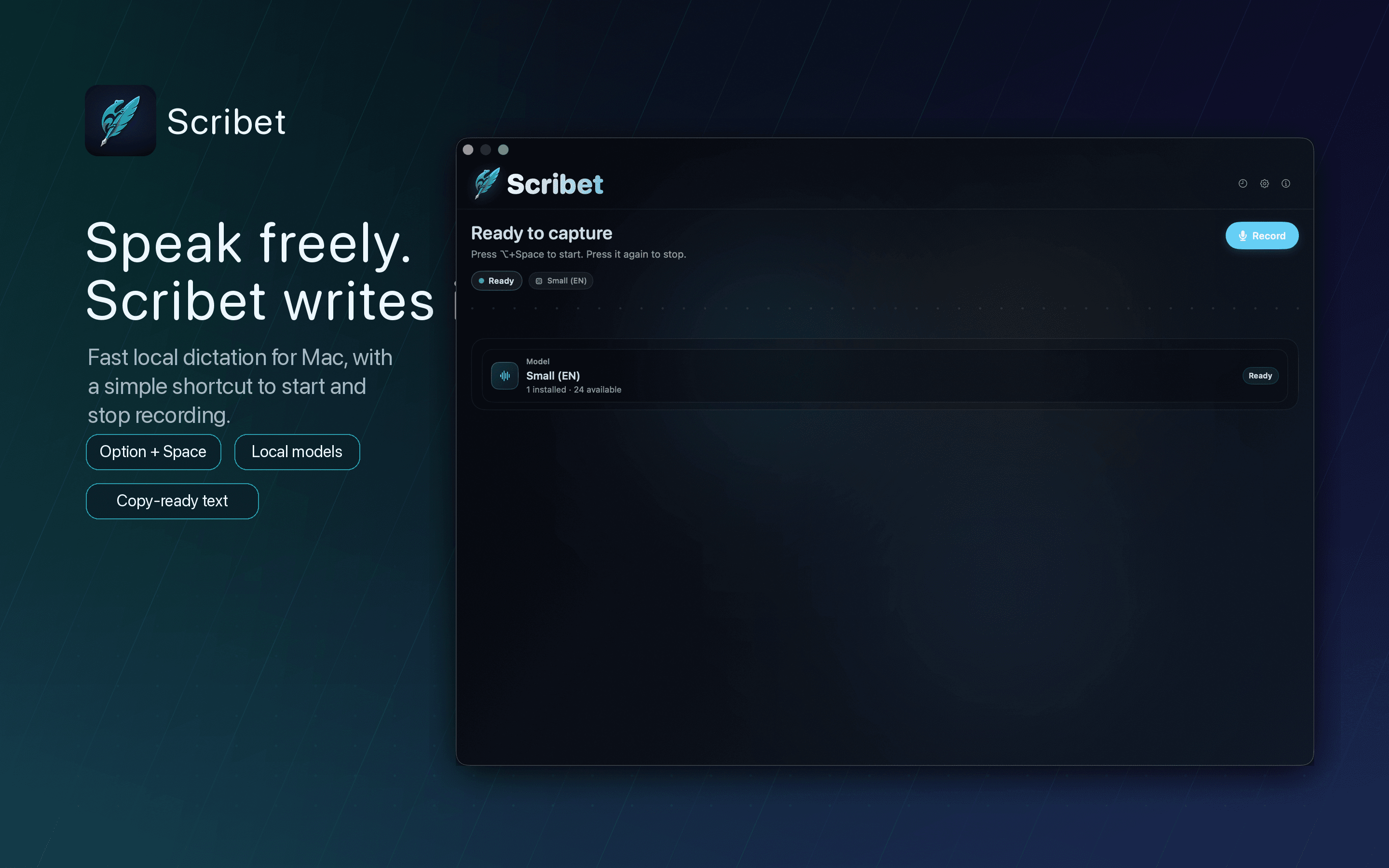
Set up private voice-to-text on your Mac, choose local transcription models, and keep dictation ready from anywhere with a global hotkey.
Getting Started
Scribet turns short voice recordings into typed text on Apple Silicon Macs. The basic loop is simple: install a local model, press the hotkey, speak, and let Scribet place the result in the app you were using.
Requirements
Apple Silicon
Scribet is built for Mac computers with Apple Silicon.
macOS 26+
Use macOS 26 or later for the supported desktop integration path.
Local model
Download a supported model before your first transcription.
Permissions
macOS protects microphone capture and app automation. Granting the right permissions keeps recording and text insertion predictable.
Microphone
Required to record your voice for local transcription.
Accessibility
Required for Scribet to paste text into the focused app.
Speech Recognition
Used when enabling native wake-word listening.
Enable the exact app copy you launch
macOS ties Accessibility permission to the exact app bundle. If you move or replace a local build, enable that copy in System Settings, Privacy & Security, Accessibility.
Recording
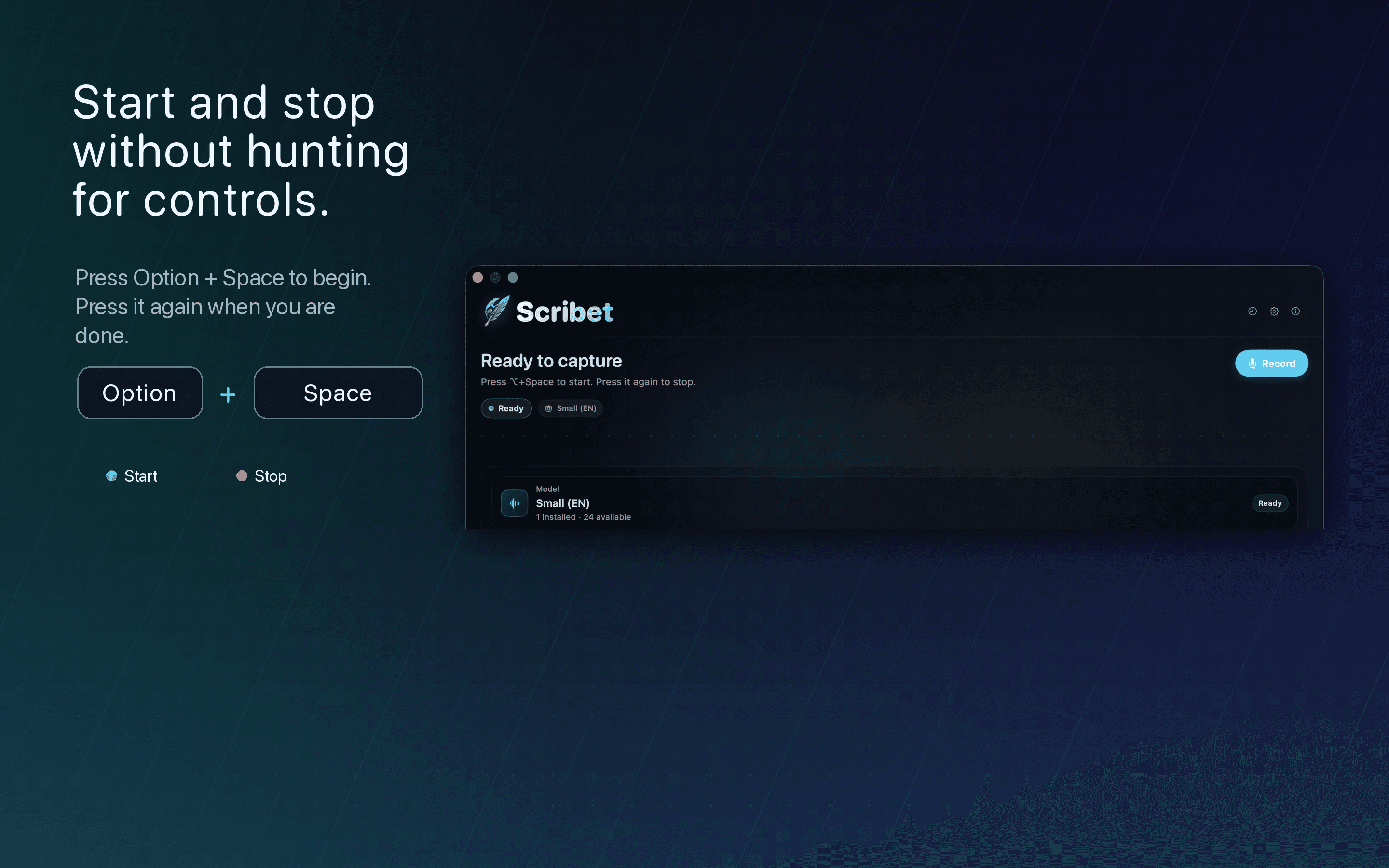
Scribet is designed around quick capture. The default recording shortcut is Option + Space, and you can change it in Settings.
How to dictate
- Open the app where you want the final text to appear.
- Press Option + Space, or use your configured hotkey.
- Speak naturally, then press the hotkey again to stop.
- Wait for local transcription to complete.
- Review the inserted text and edit normally in the target app.
Models
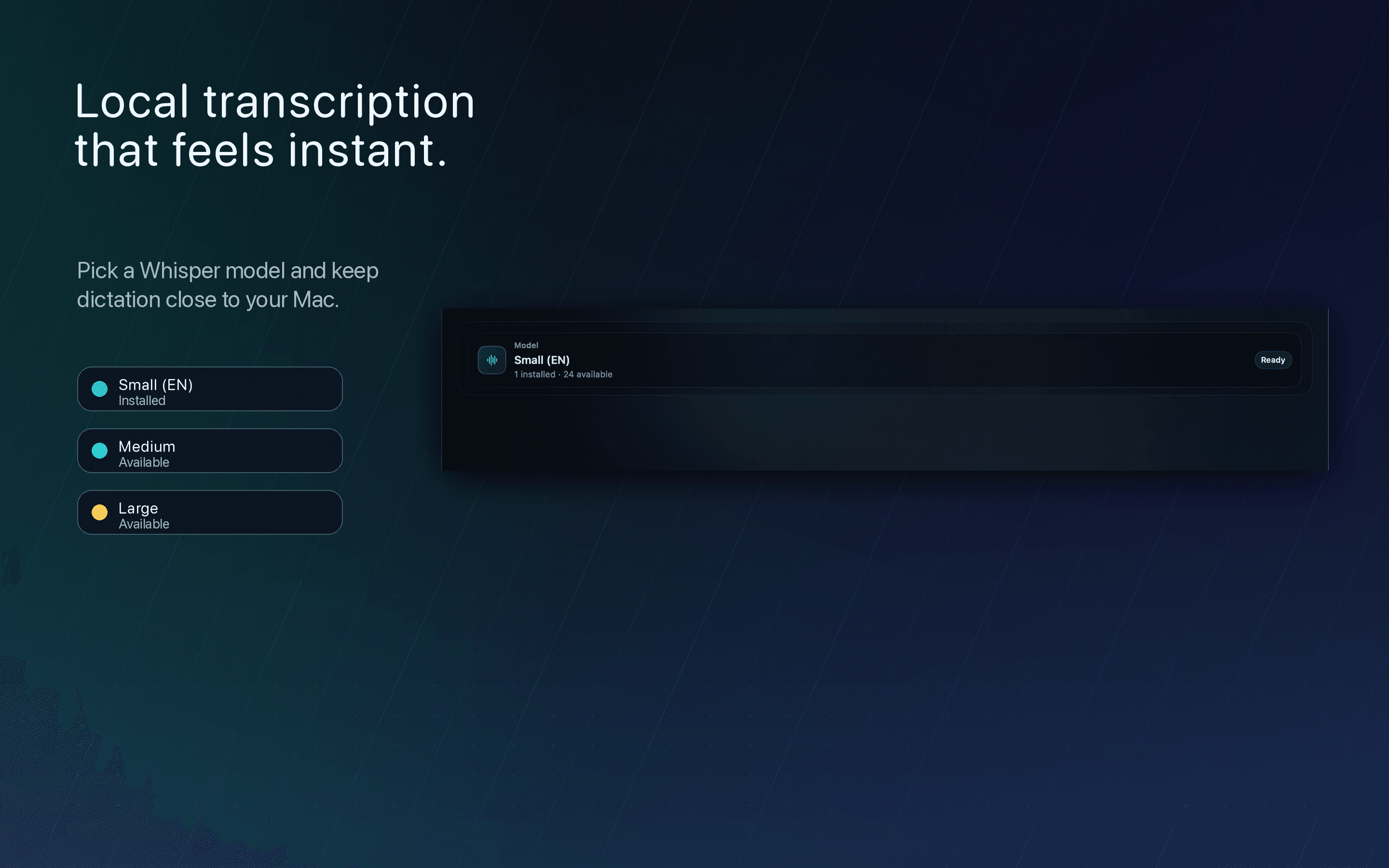
Scribet supports Whisper.cpp GGML models and sherpa-onnx model families. You can download models inside the app, scan the models folder, and switch models at runtime.
Supported model paths
Models live in Scribet's Application Support container. The app can manage this for you, but advanced users can place Whisper GGML files or sherpa-onnx directories in the local models folder.
Whisper.cpp
GGML models with Metal acceleration where available on Apple Silicon.
sherpa-onnx
NeMo, Qwen3 ASR, Moonshine, SenseVoice, Paraformer, and related supported model families.
History
Completed transcriptions are stored locally so you can find previous text without re-recording.
What history includes
Transcribed text
Timestamp and duration
Model used for the transcription
You can delete individual entries or clear all history. If optional audio saving is enabled, linked audio files are stored locally and removed with their associated history entry.
Settings
Scribet exposes the core controls you need without making dictation feel like a heavyweight editor.
Hotkey
Change the global recording shortcut from the default Option + Space.
Audio device
Use the system default microphone or choose a specific input device.
Silence stop
Automatically end recording after sustained silence when enabled.
Wake word
Start recording from an on-device wake phrase workflow when configured.
Privacy
Scribet is local-first. Audio capture, transcription, history, settings, and model selection are designed to remain under your control on your Mac.
Clipboard note
To insert text into other apps, Scribet places the transcription on the macOS clipboard and sends a paste shortcut. The transcribed text may remain on your clipboard until replaced.
Troubleshooting
Most setup issues are caused by missing permissions, missing models, or launching a different app bundle than the one macOS authorized.
Recording does not start
Check Microphone permission in System Settings and verify your selected audio input device.
Text does not appear in the focused app
Enable Accessibility access for the exact Scribet app bundle you are running, then try again.
No model is available
Open the model library, download a supported model, or place a compatible model in the local models folder and rescan.
Hotkey conflicts
If Option + Space is already used by another app or system setting, choose a different shortcut in Scribet settings.
Frequently Asked Questions
Does Scribet send my voice to the cloud?
No. Transcription runs locally on your Mac using installed Whisper.cpp or sherpa-onnx models. Model download requests may go to the upstream host you choose, but your recordings and transcripts are not sent to Elidron for transcription.
What Mac do I need?
Scribet is built for Apple Silicon Macs running macOS 26 or later. Intel Macs are intentionally unsupported.
Why does Scribet need Accessibility access?
Accessibility access lets Scribet paste typed text into the currently focused app after transcription. Without it, Scribet can still record and transcribe, but automatic insertion into other apps may not work.
Can I keep audio recordings?
Yes, but it is optional. When Save captured audio is enabled, Scribet stores WAV files in its Application Support recordings folder and links them from History.
Need the policy details?
Review Scribet's privacy policy and terms for data handling, permissions, acceptable use, and legal terms.